How to Turn Off a VPN on Windows, Mac and Your Browser (and Why Sites Ask You To)
To turn off a VPN, open the VPN app and press Disconnect; that stops the tunnel immediately. If you set the VPN up in your operating system instead of an app, switch it off there: on Windows 11, select the network icon on the taskbar and toggle the VPN quick setting off; on a Mac, use the VPN menu in the menu bar or System Settings, VPN. A browser VPN extension is turned off from its toolbar icon. If the internet stops working after you turn the VPN off, the kill switch is usually still blocking traffic; the fix is further down.
Turn it off in 10 seconds
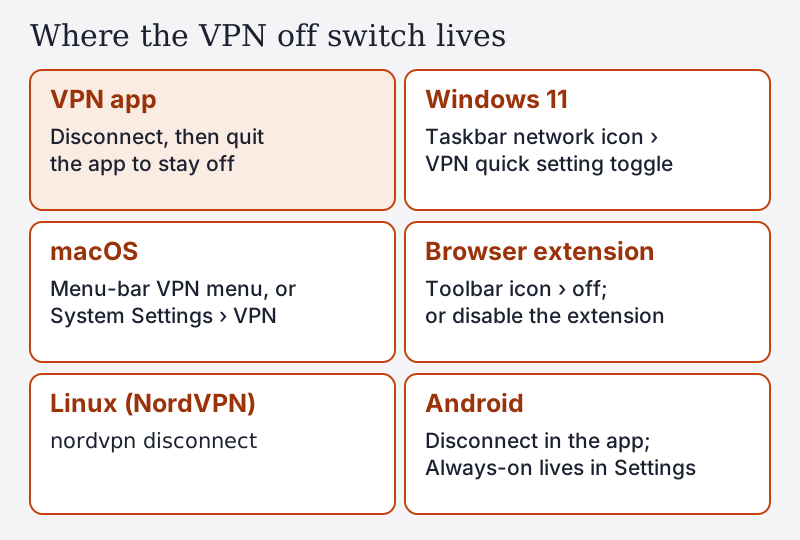
In the VPN app (most people)
Open the app and press Disconnect (some apps show a large on/off button instead). The tunnel closes and your connection goes back to your normal internet provider. Disconnecting is not the same as quitting: the app keeps running in the background, which matters if it has auto-connect turned on. If you want the VPN fully off until you choose otherwise, disconnect and then quit the app from its system-tray or menu-bar icon.
Windows 11 built-in VPN
If you added the VPN in Windows settings rather than through a provider's app, Microsoft's help page gives two places to manage it. The quick way is the taskbar: select the network, volume and battery icons, then the VPN quick setting; with one VPN configured, Microsoft says you can turn it on and off by toggling the left side of that tile. The other route is Settings, Network & internet, VPN, where each connection is listed with its controls. Provider apps such as NordVPN or Proton VPN are not controlled from here; disconnect those in the app. Our Windows setup guide explains the difference between the two. For a first install on any device, follow our step-by-step VPN setup guide.
macOS
Apple's Mac User Guide says to open System Settings, select VPN in the sidebar, and turn the VPN service on or off. If you have the VPN status menu in the menu bar, you can disconnect from there in one click. As on Windows, a provider's app has its own Disconnect button, which is the one to use if you installed the VPN that way. See our Mac setup guide for how macOS handles VPN configurations.
Browser extension
Click the extension's icon in the browser toolbar and switch it off. If you want it gone for longer, disable the extension in the browser's extensions page. Remember that an extension only ever covered that browser, so turning it off changes nothing for your other apps; our browser VPN guide explains why.
Linux
If you use a provider's command-line client, the command is usually short. NordVPN's Linux client, for example, has a `nordvpn disconnect` command, which its help text describes as "Disconnects you from VPN". For a connection imported into NetworkManager, toggle it off in the network menu. Our Linux setup guide covers both.
Why a site asked you to turn off your VPN
Many people search for this because a website or app told them to. That usually means the service checks where you are, and a VPN's shared IP address either hides that or looks like an attempt to. Some examples, from the services' own help pages and terms:
- YouTube TV's help page says you cannot stream while connected to a VPN or proxy.
- BBC iPlayer's help pages say playback is refused when the BBC detects a possible VPN or proxy.
- Peacock's terms say you may not conceal your identity or location to get around its restrictions.
Payment pages, online games and some workplace or school systems do the same for fraud or licensing reasons. Rather than switching the VPN off for everything, you can exclude just that app or site with split tunnelling, so the rest of your traffic stays protected. Our split tunnelling guide shows how. If a different server in the same country works, that is another option; our guide to changing VPN location covers that.
VPN off but no internet? The kill-switch trap
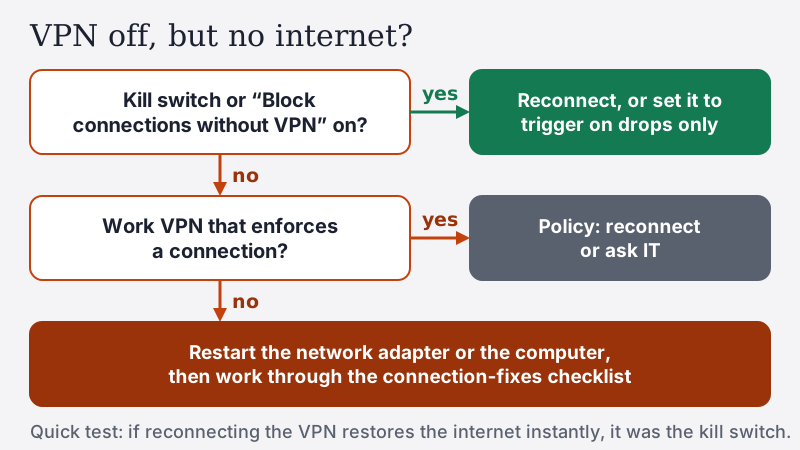
A kill switch blocks internet traffic whenever the VPN is not connected, so your real IP address never leaks during a drop. Some kill switches cannot tell a drop from you deliberately disconnecting, so they keep blocking after you turn the VPN off. That looks exactly like a broken internet connection.
| Setting | Blocks after a manual disconnect? | How to get online |
|---|---|---|
| NordVPN Internet Kill Switch (Windows) | NordVPN says it "cuts off your internet connection when disconnected from NordVPN servers" | Reconnect, or turn the Internet Kill Switch off in Settings |
| NordVPN kill switch (Linux) | Yes: NordVPN says it blocks if the VPN drops or you disconnect manually | Run nordvpn set killswitch off |
| Proton VPN standard kill switch | No: Proton says it only activates when the connection drops by accident | Nothing needed |
| Proton VPN advanced kill switch (Windows, Linux app, iOS beta) | Yes: only allows internet while connected, and stays active after a restart | Reconnect, or switch it back to standard or off |
| Android "Block connections without VPN" | Yes: the system blocks non-VPN traffic | Settings › Network & internet › VPN › gear › turn it off |
| GlobalProtect with enforced connection | Yes, by design: traffic is blocked until it reconnects | Reconnect; it is your organisation's policy |
If your provider is not listed, check its kill-switch help page for what happens on a manual disconnect; Surfshark's, for example, documents what happens when the VPN drops but not when you disconnect yourself. The quickest test is simple: if reconnecting the VPN brings the internet back instantly, a kill switch was the cause. Our kill switch guide explains the settings in more detail.
On Android, the system-level version lives at Settings, Network & internet, VPN, then the gear next to your VPN app (the stock Android and Pixel path; other phone brands vary). Both switches sit on that screen: Always-on VPN, and the option to block connections made without the VPN. Turn them off there.
Stop it reconnecting by itself
If the VPN comes back on after you turn it off, something is reconnecting it. Three usual culprits:
- Auto-connect. Most apps can connect automatically on startup or on new networks. In NordVPN's Windows app, for example, the Auto-connect setting is under Settings, Connection and security; on Linux it is `nordvpn set autoconnect off`. Many apps also let you mark networks as trusted, so the VPN stays off at home but connects on public Wi-Fi.
- Launch at startup. Apps that start with the computer can reconnect before you notice. Turn off the app's launch-at-startup option, or quit it rather than just disconnecting.
- Android Always-on VPN. When this is on, Android keeps the chosen VPN connected and reconnects it. Turn it off in the VPN settings described above.
Auto-connect is a good safety feature, so consider trusting specific networks instead of turning it off everywhere. Our first VPN settings guide explains which of these settings to keep.
Work VPNs you shouldn't switch off
A VPN installed by your employer or university is a different case. Corporate clients such as GlobalProtect, FortiClient or Windows' built-in Always On VPN connect you to the organisation's network, and they may be configured so you cannot simply switch them off.
Palo Alto's GlobalProtect documentation shows how much control administrators have. Its always-on connect methods reconnect automatically, an "Enforce GlobalProtect Connection for Network Access" setting can block all internet access until the app connects, and the "Allow User to Disable GlobalProtect App" option can allow disconnecting freely, forbid it, or require a reason, a passcode or a help-desk ticket. If your work VPN asks for a passcode or will not turn off, that is the policy working; ask IT rather than uninstalling it. Turning it off may also cut you off from work systems you need.
If a work VPN is getting in the way of a personal task, the cleanest answer is to do that task on a personal device.
Phones (short pointer)
On a phone, open the VPN app and tap Disconnect. If the VPN reconnects by itself on Android, turn off Always-on VPN in the VPN section of Settings, as above. On an iPhone, disconnect in the provider's app. Our Android setup guide covers the Android settings in more depth.
Turning it off for good
If you are turning a VPN off because you want to stop using it, disconnecting is not the end. Cancel the subscription's auto-renewal in your account or app store, because long VPN plans renew automatically at the full renewal price. Refund windows usually cover only the first purchase; NordVPN, for example, says renewed subscriptions are not eligible under its 30-day policy. Then uninstall the app, and on Android check that Always-on VPN is not still pointed at it.
If you are turning it off because it is causing problems, try fixing the problem first: our connection fixes checklist covers slow speeds and failed connections. And if your current app gives you no way to trust your home network, NordVPN is one provider whose apps let you list trusted networks where auto-connect stays off (affiliate link; see our affiliate disclosure).
Bottom line
Turning off a VPN takes one click: Disconnect in the app, the VPN tile in Windows 11 quick settings, the VPN menu or System Settings on a Mac, or the extension's toolbar icon. If the internet stops afterwards, a kill switch is still blocking traffic; reconnect, or change the setting, using the table above. If the VPN switches itself back on, look at auto-connect, launch at startup or Android's Always-on VPN. And if a site asked you to turn it off, split tunnelling lets you exclude that one site or app instead of dropping protection for everything.
Turning off a VPN: frequently asked questions
How do I turn off a VPN on my computer?
Why is there no internet after I turn off my VPN?
How do I disable a VPN in Chrome?
Why does my VPN keep turning back on?
Should I turn off my work VPN?
New to this? Start with how to set up a VPN, or read how to use a VPN day to day.