How to Change Your VPN Location (and Why Sites Still See the Old One)
To change your VPN location, open your VPN app, pick a different country or city from its location list, and connect. You do not need to disconnect first; the app moves you to the new server and your IP address changes within seconds. If a website still shows where you really are afterwards, the VPN usually did its job: something other than your IP address (your browser's location permission, a DNS or WebRTC leak, or the region on your account) is telling the site where you are. This guide covers the switch itself and then each of those signals, with a fix for each.
Change your VPN location in three steps
The steps are the same in every mainstream app, whether that is NordVPN, Surfshark, Proton VPN or ExpressVPN, on Windows, Mac or Linux:
- Open the app and find the location list. It is usually on the main screen, sometimes labelled Locations, Countries or Servers, sometimes shown as a map.
- Pick a country, then a city if the app offers one. Choosing the country alone lets the app pick the least busy server there, which is usually the better choice.
- Wait for the status to show the new location. The app hands your connection over without a manual disconnect, and open web pages and apps carry on over the new route.
One exception catches free users. On Proton VPN's free plan, Proton says you connect to servers in 10 countries that are "randomly selected", so you cannot choose the country at all. If changing location is the point, you need a paid plan or a provider whose free tier offers a country list.
On a Linux command-line client the same idea is a single command. NordVPN's Linux app, for example, accepts a country after the connect command (its own help text gives `nordvpn connect Australia`), as covered in our Linux setup guide.
Which server should you pick?
For speed, choose the closest location that meets your need. Distance adds latency, so a server in a neighbouring country nearly always feels quicker than one on another continent. If you are travelling and want your home country's services, pick your home country even though it is farther away. When you have no particular reason, the app's recommended or fastest option is a good default, because it weighs distance and server load for you.
Use favourites and specialty servers
Most apps let you star a location so it sits at the top of the list, and some let you set the country auto-connect should use. Specialty servers (labelled things like obfuscated, double VPN or dedicated IP) solve specific problems; they are not a better way to change location, and some are slower than a standard server. Use them only when you need what they do. Our first VPN settings guide covers which toggles are worth changing on day one.
Location still wrong? The five other signals
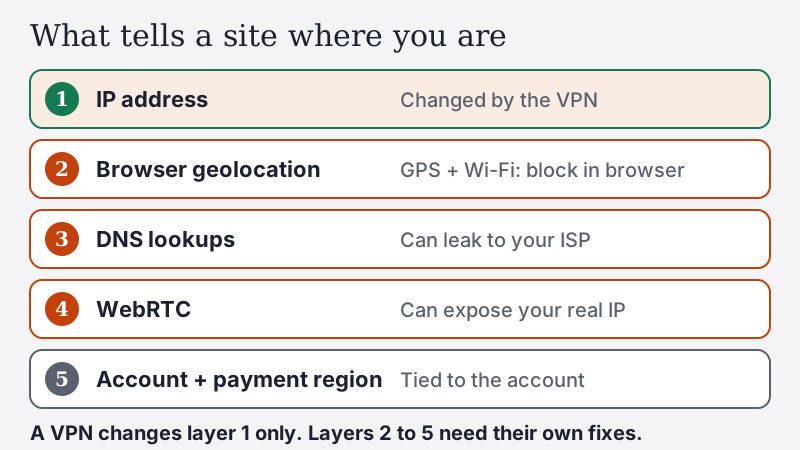
A VPN changes one thing: the IP address the website sees. Sites and apps that care about location rarely rely on that alone. Here are the five signals that most often contradict a VPN, roughly in the order they cause trouble.
- Browser geolocation. If you ever clicked Allow on a "this site wants to know your location" prompt, the site can ask your browser for a precise position. That position comes from your device, not your IP address, so the VPN cannot touch it.
- The operating system's location service. The browser gets that position from the system. Microsoft says Windows uses "a combination of global positioning service (GPS), nearby wireless access points and routers", plus cell towers and IP address. Apple says a Mac works out its location from local Wi-Fi networks.
- DNS requests. Every site name you visit is looked up first. If those lookups go to your internet provider instead of through the tunnel, a test site can see a resolver in your real country.
- WebRTC. The browser feature behind video calls can reveal local and public IP addresses to a web page. A good VPN app or extension blocks this; a bad setup does not.
- Account, payment and app region. Streaming services, app stores and banks remember where your account was registered and how you pay. A new IP address does not rewrite any of that.
Browser geolocation and how to stop it
This is the most common reason a map or a "stores near you" page still finds you. In Google's words, when you allow a site to use your location, "Chrome sends information to Google Location Services to get an estimate of where you are." Wi-Fi networks near you are part of that estimate, which is why it can be accurate to a street even while a VPN puts your IP address in another country.
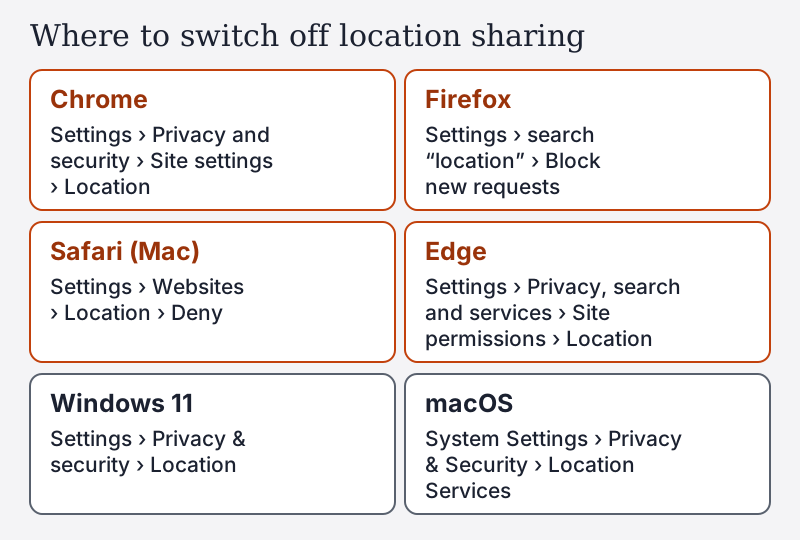
Block it in the browser you use, then remove any site you previously allowed:
- Chrome: More menu, Settings, Privacy and security, Site settings, then Location under Permissions. Choose the default you want and remove allowed sites.
- Firefox: Settings, search for "location", open the Location permission settings and tick "Block new requests asking to access your location". Mozilla notes that sites you already approved keep access until you remove them from that list.
- Safari on Mac: Safari, Settings, Websites, Location, then set sites to Deny.
- Edge: Settings, Privacy, search and services, Site permissions, All permissions, Location. Microsoft notes that Edge can share a more precise location only when Windows location access is on.
For a belt-and-braces fix, switch off the system service too. On Windows 11 that is Settings, Privacy & security, Location; on a Mac it is System Settings, Privacy & Security, Location Services. Turning these off also stops weather and maps apps finding you, so you may prefer to leave them on and simply deny browser access.
Account and payment region
Here a VPN genuinely cannot help, and pretending otherwise wastes time. Services tie your region to your account, and many verify location in ways a VPN does not alter:
- YouTube TV sets a home area that, per Google's help pages, can be changed at most twice in 12 months and only while you are physically in the new area. Its help page also says you cannot stream while connected to a VPN or proxy.
- MLB.TV runs location checks when you open a live game and may ask for access to your device's location data.
- Peacock's terms say you may not conceal your identity or location to get around its restrictions, and BBC iPlayer says programmes will not play if it detects you might be using a VPN or proxy.
App stores and payment cards behave similarly: the store follows the country of your account and payment method, not your IP address. Before changing location to reach a service, read its terms; some prohibit it outright, and accounts can be restricted for it.
Leaks: DNS, WebRTC and IPv6
A leak means some of your traffic or lookups bypass the tunnel. All three are easy to test and usually easy to fix in the app.
DNS. Use your VPN app rather than a manually imported profile where you can; provider apps are built to send DNS lookups through the tunnel, often to the provider's own resolvers. If a leak test shows your internet provider's resolver, check for a custom DNS setting in your operating system or router overriding the VPN's.
WebRTC. Reputable VPN browser extensions have a WebRTC protection toggle; turn it on. A full VPN app on the device is the stronger fix, because it tunnels the whole system rather than one browser. Our browser VPN guide explains why an extension alone is a proxy for that browser, not a device-wide VPN.
IPv6. If your connection has IPv6 and the VPN tunnels only IPv4, IPv6 traffic can travel outside the tunnel. Providers handle this differently; NordVPN, for instance, has put IPv6 support on hold in its Linux app since release 4.0.0, pointing to WebRTC leaks as the reason. If a test shows an IPv6 address from your provider, look for an IPv6 leak protection setting in the app, or ask the provider's support how their app handles it.
Checking what a site actually sees
| What you see | Likely signal | Fix |
|---|---|---|
| Map or "near you" page shows your real town | Browser geolocation | Deny location for the site; clear previous Allow |
| IP checker shows the new country but a leak test lists your ISP's DNS | DNS leak | Use the provider's app; remove custom OS or router DNS |
| IP checker shows your real IP only in the WebRTC section | WebRTC | Enable WebRTC protection; prefer the full app |
| An IPv6 address from your ISP appears | IPv6 outside the tunnel | Use the app's IPv6 leak protection or ask the provider |
| Streaming app keeps your home catalogue or refuses to play | Account region or VPN detection | Nothing in the VPN fixes this; check the service's terms |
| Location correct on one server, wrong on another | Server's IP listed in a different place | Pick another server in the same country |
Run three checks after you switch, in this order. First, an IP-lookup site, to confirm the new country. Second, a DNS leak test, to confirm the resolvers it lists belong to your VPN provider rather than your internet provider. Third, a WebRTC check in the browser you actually use. If all three agree and a site still places you at home, the site is using your account or device location, and the fix is in the account or in your location permissions, not in the VPN.
The last row of the table is worth knowing about. IP location databases are compiled by third parties and are sometimes wrong about where a particular server address sits, so two servers in the same city can appear in different places to different sites. If one server shows the wrong country, switching to another server in the same country often fixes it.
When the new location is blocked rather than wrong
Sometimes the location is right and the site still refuses you, with a message about a VPN or proxy. That is a different problem: the service recognises the server's IP address as belonging to a VPN, because many users share it. Changing location again will not help if the service blocks VPN addresses in general.
Three things are worth trying, in order of effort:
- Another server in the same country. Blocks are often applied address by address, so a different server can work where the first did not.
- A dedicated IP address. Some providers sell an IP address used only by you, which looks less like shared VPN traffic. Surfshark, for example, lists its dedicated IP add-on's standard rate as $45 a year on one- and two-year plans, or $3.75 a month on monthly plans, in 20 locations (US pricing pages, read 9 Oct 2026; a first-term checkout price may differ).
- Turn the VPN off for that one service. If a bank or a streaming app insists, use split tunnelling to exclude just that app, rather than leaving yourself unprotected everywhere.
None of these overrides a service's terms. If a provider prohibits VPN use for its service, the honest answer is to use it without the VPN, or not at all.
Edge cases worth knowing
- Phones. GPS makes phones the hardest devices to relocate. Apps with location permission see your real position whatever the VPN does; manage per-app location permission in the phone's settings. Our Android setup guide covers the VPN side.
- Work laptops. A corporate VPN usually decides your location for you. Switching your personal VPN on top of it typically breaks one or both connections.
- Split tunnelling. Apps you excluded from the VPN keep your real IP. If one app still shows home, check your split tunnelling list.
- Search results and ads. Search engines also weigh your account's settings and history, so local results can lag behind a location change.
- Changing location rarely. Hopping between countries does not make you more private. Change location for a reason (speed, a home service while travelling, a server that is blocked) and stay put otherwise.
Getting a location you can choose
If your current VPN does not let you choose the country, or keeps landing you on servers that sites misplace, the fix is a provider with a wider location list and apps that handle DNS, WebRTC and IPv6 protection for you. NordVPN, Surfshark and Proton VPN all have country lists on their paid plans (these are affiliate links; see our affiliate disclosure). Check the renewal price as well as the first-term price before you buy, because long-plan discounts end at renewal. And if your VPN will not connect at all after a location change, the connection fixes checklist is the place to start. New to VPNs? Start with how to set up a VPN.
Bottom line
Changing your VPN location is a two-click job: pick a country in the app and let it switch you over. When a site still finds you, look past the IP address. Deny browser location access, make sure DNS, WebRTC and IPv6 go through the tunnel, and accept that account and payment region sit outside what any VPN can change. Three quick checks (IP, DNS, WebRTC) tell you which signal is giving you away, and the table above tells you what to do about it.
Changing VPN location: frequently asked questions
How do I change my VPN location?
Why does my location still show my real town with a VPN on?
Can I use a VPN to change my location on an app or streaming service?
How do I change my VPN to a different country for free?
How do I check which location a website sees?
New to this? Start with how to set up a VPN, or read how to use a VPN day to day.