How to Use a VPN on a Chromebook: Android App vs Extension vs Built-In
The best way to use a VPN on a Chromebook is your provider's Android app from the Google Play Store: it installs in a minute and, according to Proton, secures the whole Chromebook, including the Chrome browser, Android apps and Linux apps. A Chrome extension is easier still but protects only the browser. The built-in VPN in ChromeOS settings (IKEv2, L2TP/IPsec, basic OpenVPN, and WireGuard on some models) is for manual or work configurations. One catch applies to the Android app route: on Chromebooks its kill switch and always-on setting do not survive a restart, so they need switching on again.
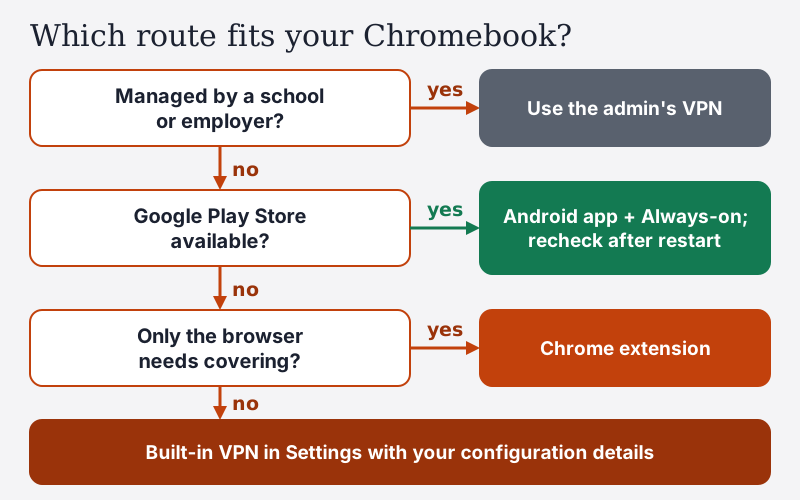
This guide is for anyone setting up a VPN on their own Chromebook. If yours is managed by a school or employer, the short answer is different, and it is in its own section below.
The quick answer
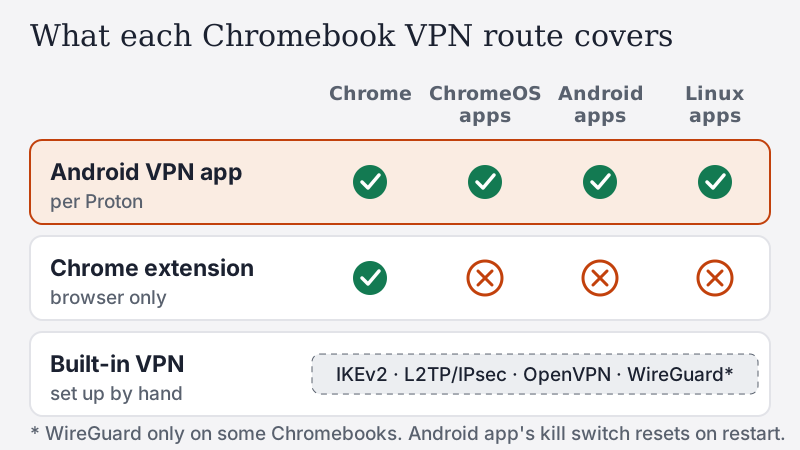
- Most people: install your VPN provider's Android app from the Play Store. Proton says its Android app "can secure all connections from your Chromebook".
- Only care about the browser, or no Play Store: use the provider's Chrome extension, knowing other apps keep your real IP address.
- Have a configuration file or work details: use the built-in VPN in Settings.
- School or work Chromebook: ask your administrator; they control the VPN settings.
| Path | What it covers | Kill switch | Setup effort | Best for |
|---|---|---|---|---|
| Android app from Google Play | Whole Chromebook: Chrome, ChromeOS apps, Android and Linux apps (per Proton) | App's own, plus Android always-on; both reset after a restart | About five minutes | Nearly everyone |
| Chrome extension | The Chrome browser only | Browser only, if any | About two minutes | Browsing on a Chromebook without the Play Store |
| Built-in VPN (Settings) | System connection for the profile you enter | None of its own | Manual: server, keys or certificates | Work VPNs, WireGuard or OpenVPN configs |
Path 1: an Android VPN app (recommended)
Most Chromebooks sold in recent years run Android apps from Google Play; Proton says models from 2017 onwards should qualify. Google's help page gives the steps for installing a VPN app this way, and the provider's app then works much as it does on a phone.
- Open the Play Store from the Launcher, search for your VPN provider and select Install.
- Open the app and sign in. The first time it connects, accept the connection request that appears.
- Pick a server or press connect. Google notes that installed VPN apps also appear under Settings, Network, where you can choose "Add [app name]" next to a connection.
What the app covers is the main reason to prefer it. Proton's support page says its Android app on a Chromebook protects ChromeOS traffic (the Chrome browser and Files), Android apps and Linux apps. That is much broader than an extension. Our Android setup guide covers the app settings in more detail.
The restart gotcha
This is the Chromebook-specific problem almost no one mentions. Proton's Chromebook kill-switch article says a restart switches both the always-on VPN and the kill switch off again, and that this "is a result of how Chrome OS handles Android apps and cannot be changed." Proton also points out that reconnecting automatically does not protect you from IP leaks until the app has loaded.
In practice:
- After every restart, open the VPN app and check that it is connected and that the kill switch is still on.
- Prefer closing the lid (sleep) to shutting down when you want protection to resume cleanly, as Proton suggests.
- Use Android's own safety net as well. Google's Chromebook help gives the path: Settings, Apps, Manage Google Play preferences, Android Settings, Network & internet, VPN, then the gear next to your VPN app. Turn on Always-on VPN, and consider Block connections without VPN, which stops direct internet access when the VPN is down.
Our kill switch guide explains how to test that blocking actually happens.
Path 2: a Chrome extension (browser only)
A Chrome VPN extension routes the traffic of the Chrome browser through the provider's servers. Everything else on the Chromebook (Android apps, Linux apps, system updates) goes out over your ordinary connection, showing your real IP address. Most extensions are best described as encrypted proxies for one browser rather than device-wide VPNs, a distinction our browser VPN guide explains.
That trade-off is fine when the browser is all you use, or when your Chromebook has no Play Store. Two cautions matter more on Chromebooks, where the browser is most of the computer:
- Free extensions vary enormously. Researchers at Koi Security found in December 2025 that Urban VPN Proxy and several sibling extensions were capturing what users typed into AI chatbots, along with the replies. The Chrome Web Store's "your data is not sold" line is a developer self-declaration that even that extension carried, so it proves nothing.
- Stick to extensions from established VPN providers. On the Chrome Web Store in October 2026, Proton's extension (published by Proton AG) showed 2,000,000 users and Windscribe's (Windscribe Limited) also showed 2,000,000; both declare collecting authentication information.
Turn on the extension's WebRTC protection if it has one, because WebRTC can reveal your real IP address to web pages even through a browser proxy.
Path 3: the built-in ChromeOS VPN
ChromeOS can connect to a VPN server directly, with no app. Google's help page lists built-in support for IKEv2, L2TP over IPsec and basic OpenVPN, and says "some Chromebooks have basic built-in support for the WireGuard protocol." PPTP is not built in. This route suits work VPNs and people who have a configuration file from a provider or their own server.
To add one: select the time at the bottom right, open Settings, and in the Network section choose Add connection, then Add built-in VPN. What you enter depends on the type:
- IKEv2: server hostname, authentication type, and a username and password, pre-shared key or certificates, as your provider specifies.
- L2TP/IPsec: server hostname, username and password, group name, and a pre-shared key or certificates.
- OpenVPN: server hostname, username and password (blank if you use certificates only), a one-time password if required, and the CA and user certificates.
- WireGuard: your client IP address, name servers, private key, and the peer's public key, endpoint and allowed IPs.
One warning from Google itself: the OpenVPN form offers "Don't check" for the server certificate authority, and Google says that "skips an important security measure". Do not choose it to make an error go away.
The built-in route has no kill switch of its own and does not update itself the way a provider's app does. For a personal VPN subscription, the Android app is nearly always the better choice; our general setup guide explains the app-versus-manual trade-off.
Choosing a VPN for a Chromebook
"Best VPN for Chromebook" lists tend to rank the same providers they rank everywhere. The Chromebook-specific questions are narrower, and you can check each one before paying:
- An Android app in Google Play. This is the route that covers the whole machine, so it matters more than any desktop feature. NordVPN, Surfshark and Proton VPN all publish Android apps.
- A Chrome extension as well. Useful as a fallback on a Chromebook without the Play Store, or a second browser profile.
- A kill switch inside the Android app. Remember it resets after a restart, so you also want the app to reconnect reliably when it opens.
- A named, dated no-logs audit. Proton's fifth consecutive annual no-logs audit by Securitum was published in 2026; NordVPN's sixth independent assurance engagement, by Deloitte, ran in November and December 2025. A bare "no-logs" claim without an auditor's name tells you little.
- Enough simultaneous connections. A Chromebook is often one device among several. Proton VPN Plus allows 10 at a time; Surfshark lists unlimited devices.
Price matters too, but look at the renewal price, not only the first term, because long-plan discounts end when the plan renews.
Free VPN for Chromebook: what you actually get
Free VPNs work on Chromebooks the same way paid ones do, through the Play Store or an extension. The useful question is what each free plan limits.
- Proton VPN Free: Proton says there is no data limit, no time limit and no advertising. You get one device, Proton assigns the server from 10 countries (there is no country picker), and the kill switch is included. P2P and streaming support are paid features.
- Windscribe Free gives 2 GB a month, or 10 GB a month once you add and confirm an email address, according to Windscribe; the higher allowance is in exchange for receiving occasional promotional emails.
If you outgrow a free plan, compare renewal prices as well as the first-term deal. Proton VPN Plus, for example, was listed in the US at $3.49 a month on its two-year plan, charged $83.76 upfront for the first two years, then renewing at $83.88 every 12 months (read 9 Oct 2026). You can try Proton VPN or get NordVPN, which both publish Android apps that run on Chromebooks (affiliate links; see our affiliate disclosure). Whatever you choose, avoid free VPNs that cannot explain how they pay for their servers.
Managed and school Chromebooks
If your Chromebook belongs to a school or employer, the administrator controls its network settings. Google's help page says administrators can force-install a VPN app from the Admin console and supply configuration and certificates, and its advice for VPN problems on a work or school Chromebook is to "contact your administrator for help."
So the honest answer for a managed device is: use the VPN your administrator set up, and do not try to work around the policy. Managed Chromebooks may block the Play Store, extensions or VPN settings entirely, and getting around that typically breaks the acceptable-use rules you agreed to. If you need a personal VPN for your own browsing, use it on your own device.
Checking it works
Once connected, take two minutes to confirm the route is doing what you think.
- Open an IP-lookup site in Chrome and check it shows the VPN's location, not yours.
- Run a DNS leak test and make sure the resolvers listed belong to your VPN provider.
- If you used an extension, open an Android or Linux app that shows your IP; it will show your real one, which is expected for that path.
- Restart the Chromebook once and see what happens. With the Android app, confirm the VPN and kill switch are back on before you rely on it.
If the VPN will not connect at all, our connection fixes checklist covers the common causes, from a wrong system clock to a network that blocks VPNs.
Edge cases worth knowing
- Linux apps (Crostini). Proton says its Android app covers Linux apps too. An extension does not.
- Split tunnelling. If your Android VPN app offers per-app split tunnelling, any app you exclude uses your real IP address. See our split tunnelling guide.
- Two VPNs at once. Do not run an extension and the Android app together. Pick one; stacking them makes problems harder to diagnose.
- Older Chromebooks without the Play Store. The extension and the built-in VPN are your options. The built-in VPN covers more than the extension, but needs manual setup.
Bottom line
On a Chromebook, install your VPN provider's Android app from the Play Store: it is quick, and per Proton it covers the browser, Android apps and Linux apps. Turn on its kill switch and Android's Always-on VPN, and check both after every restart, because ChromeOS resets them. Use an extension only when the browser is all you need, and the built-in VPN for work or manual configurations. On a school or work Chromebook, the administrator's VPN is the one to use.
VPN on a Chromebook: frequently asked questions
Can you use a VPN on a Chromebook?
Does a VPN Chrome extension protect my whole Chromebook?
What is the best free VPN for a Chromebook?
Why does my Chromebook VPN kill switch turn off after a restart?
Can I use a VPN on a school Chromebook?
New to this? Start with how to set up a VPN, or read how to use a VPN day to day.